Copy the order credentials
Open the delivered order, copy host, port, username, and password, and note the listed protocol.
LETTOOL GUIDE
Add LetTool proxy details in AdsPower
Screenshots help locate entry points and fields. Client versions may change labels, so follow the current app UI when it differs.
Open the delivered order, copy host, port, username, and password, and note the listed protocol.
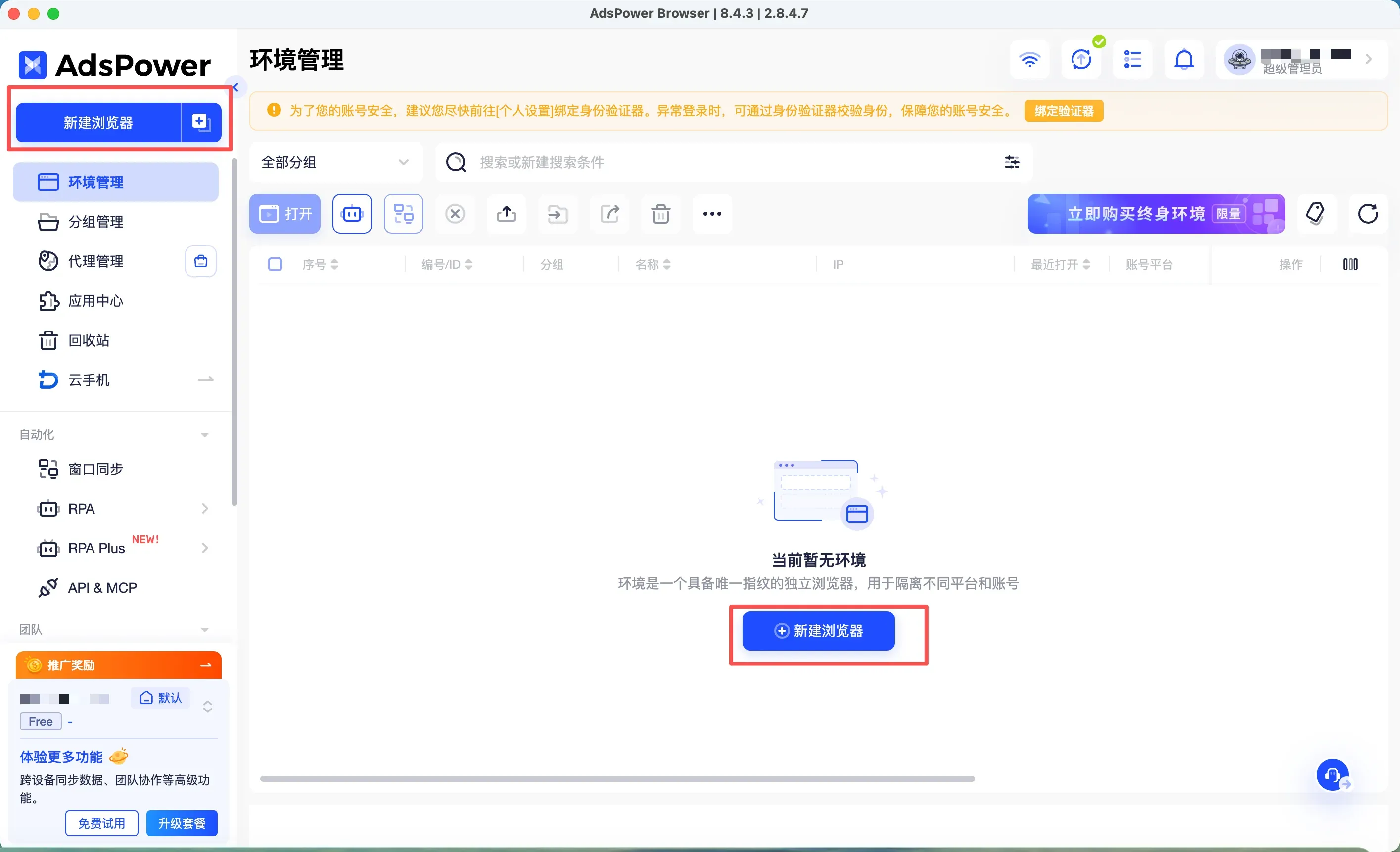
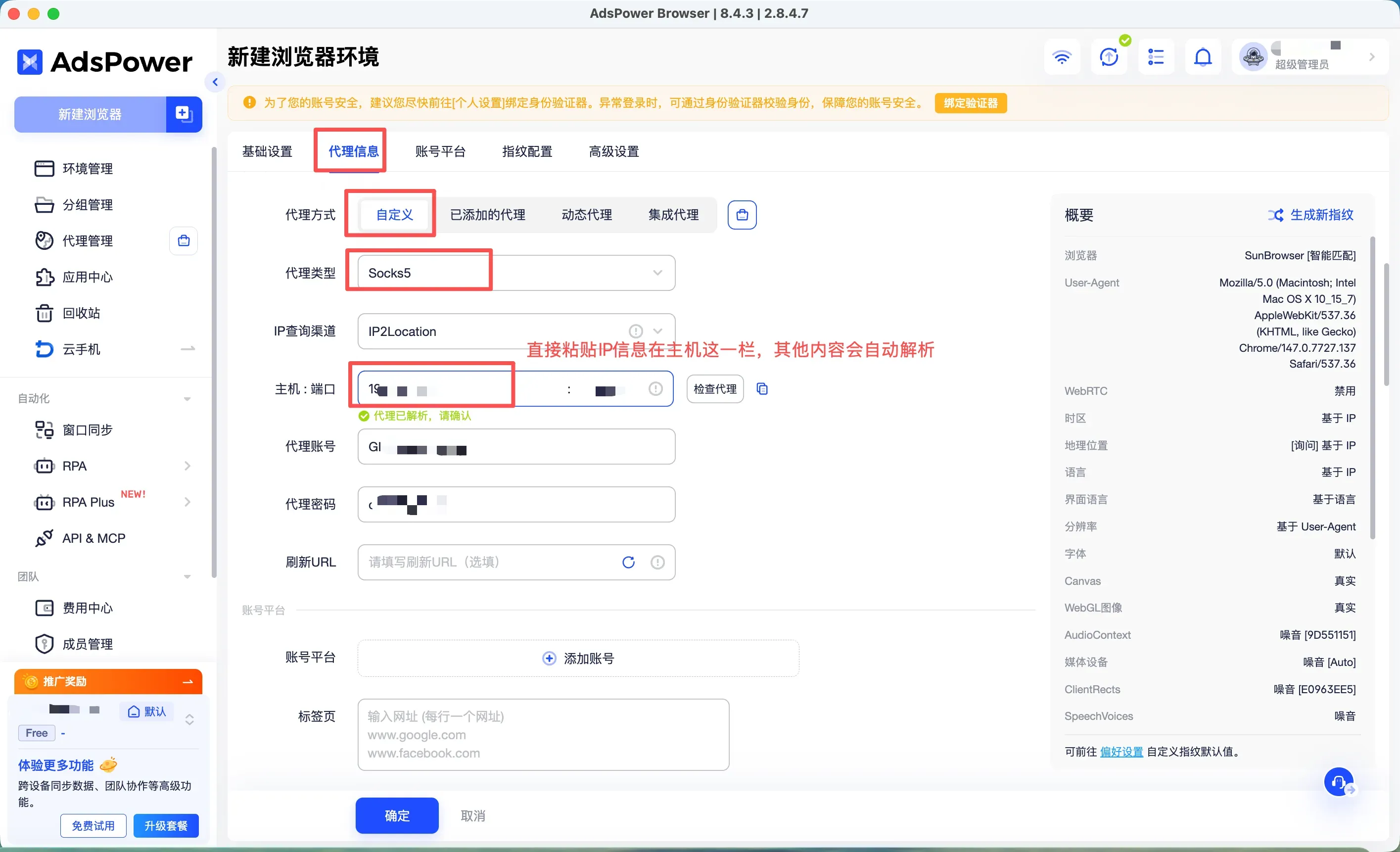
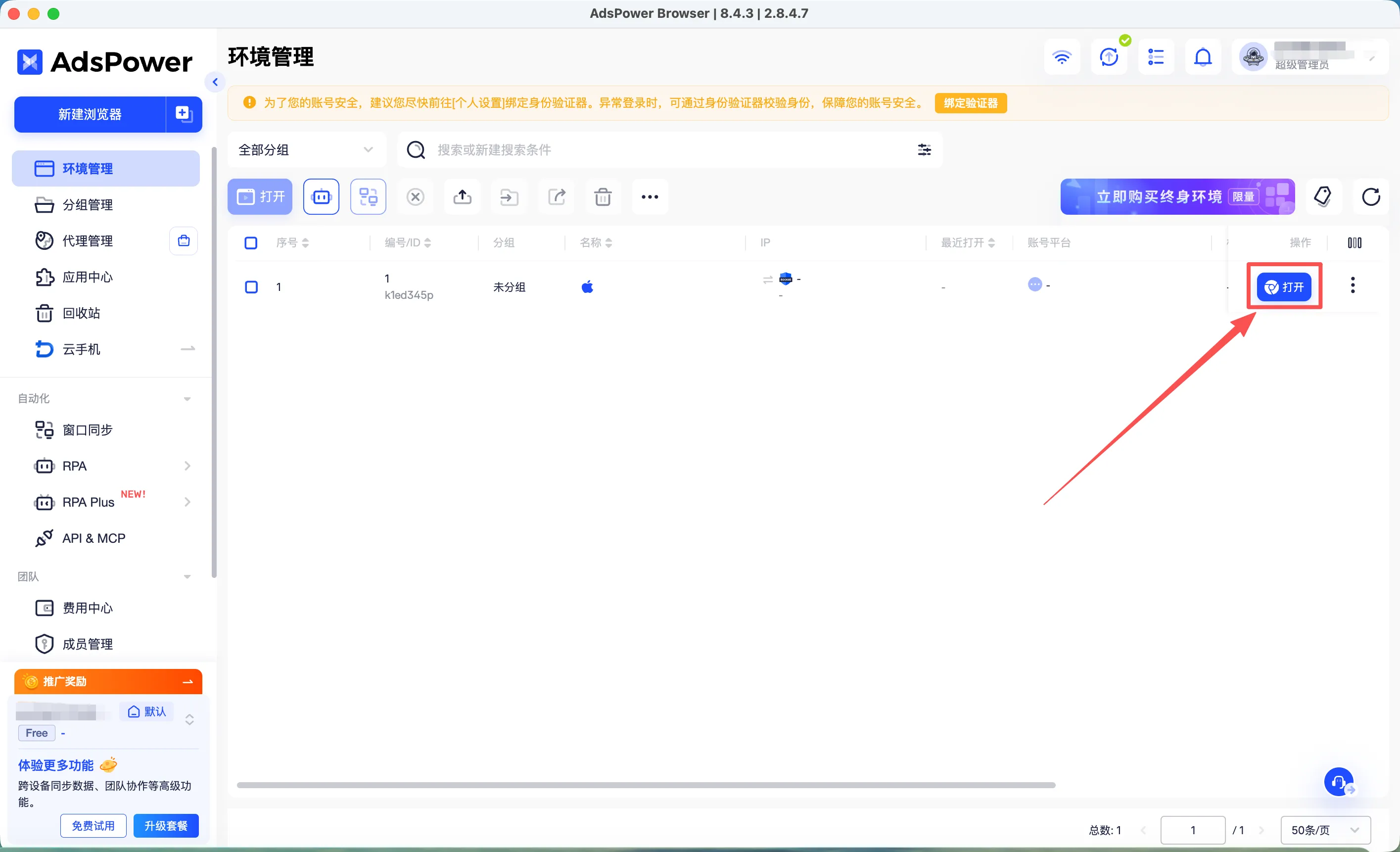
In AdsPower, create a profile, enter browser details, then open the proxy section.
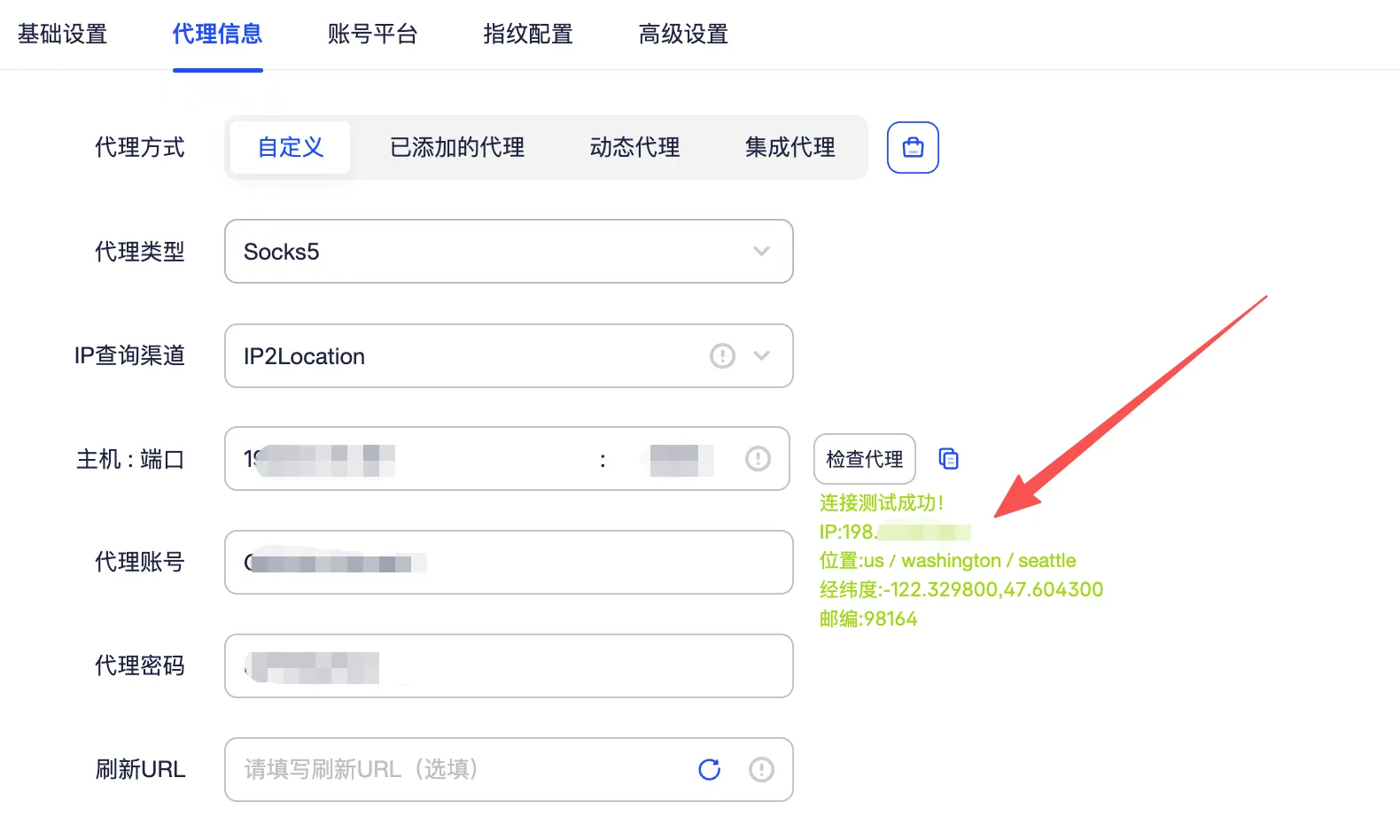
Choose Custom proxy and select SOCKS5 or HTTP. Paste each credential into the matching field without extra spaces.
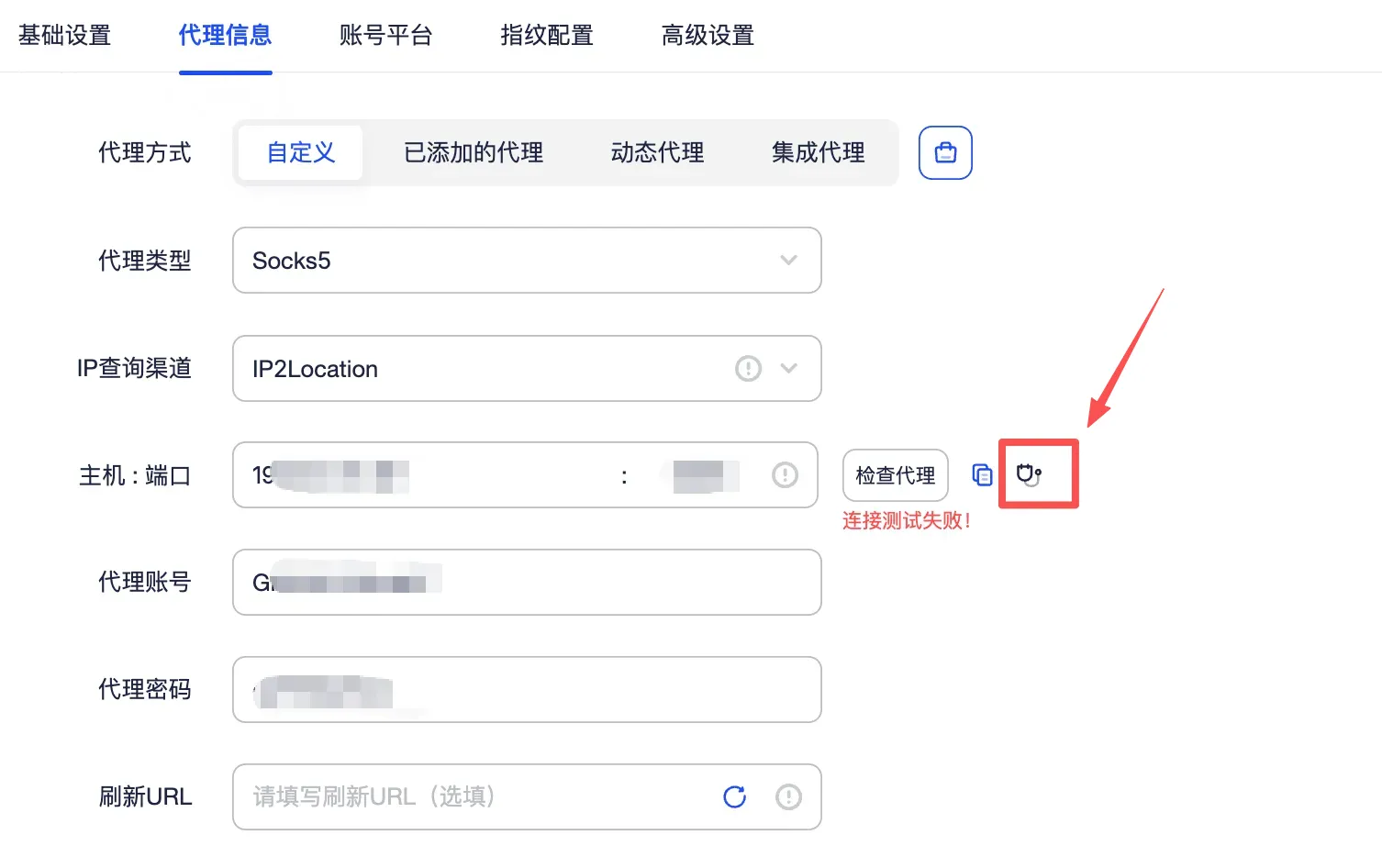
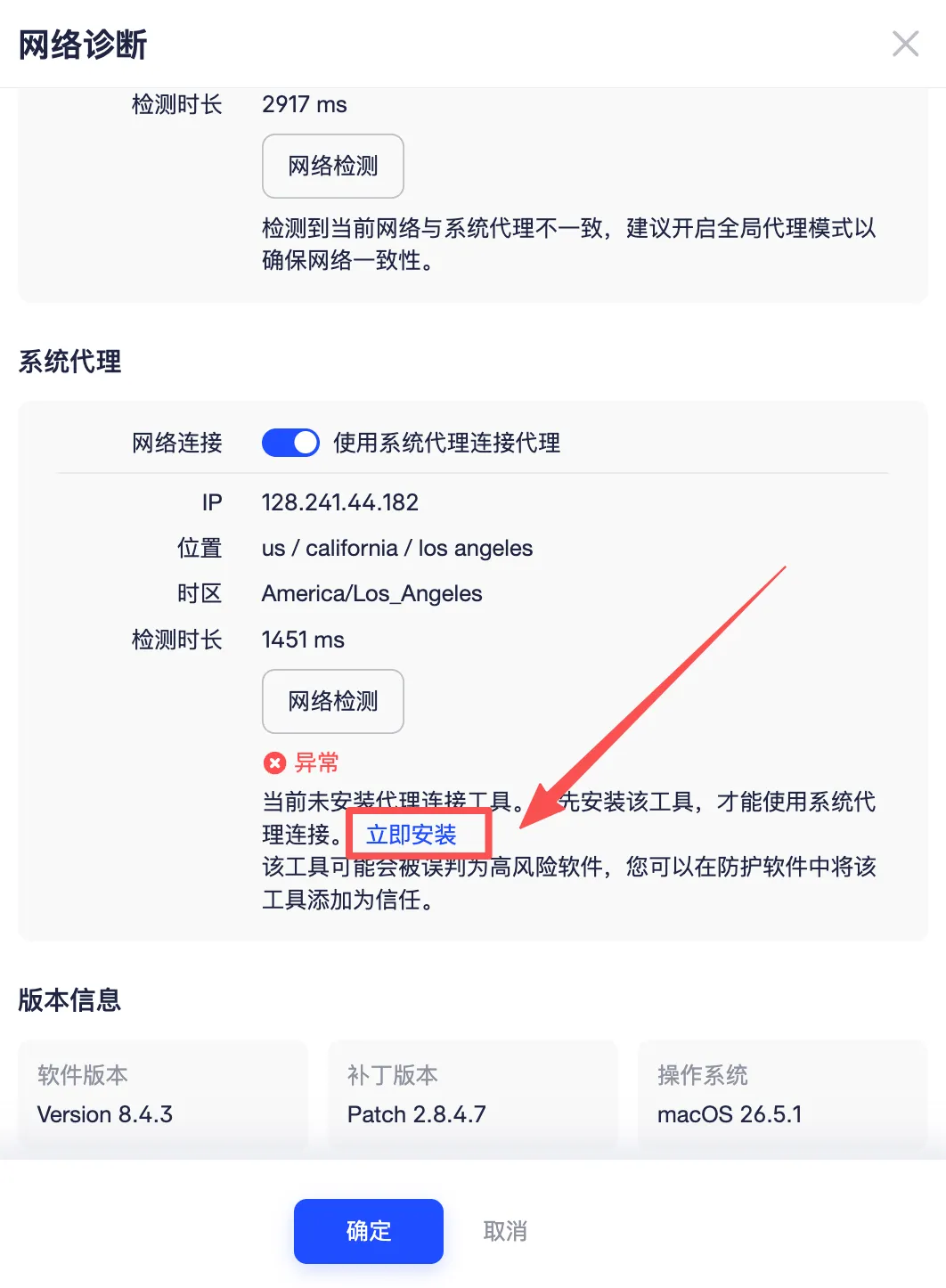
Use the proxy test to confirm connectivity. If AdsPower reports a local network component issue, follow its current repair prompt and test again.