Prepare node details
Copy the full credentials and confirm whether the order uses SOCKS5 or HTTP. Clash Verge fields vary by version.
LETTOOL GUIDE
Enter LetTool proxy details in Clash Verge
Screenshots help locate entry points and fields. Client versions may change labels, so follow the current app UI when it differs.
Copy the full credentials and confirm whether the order uses SOCKS5 or HTTP. Clash Verge fields vary by version.
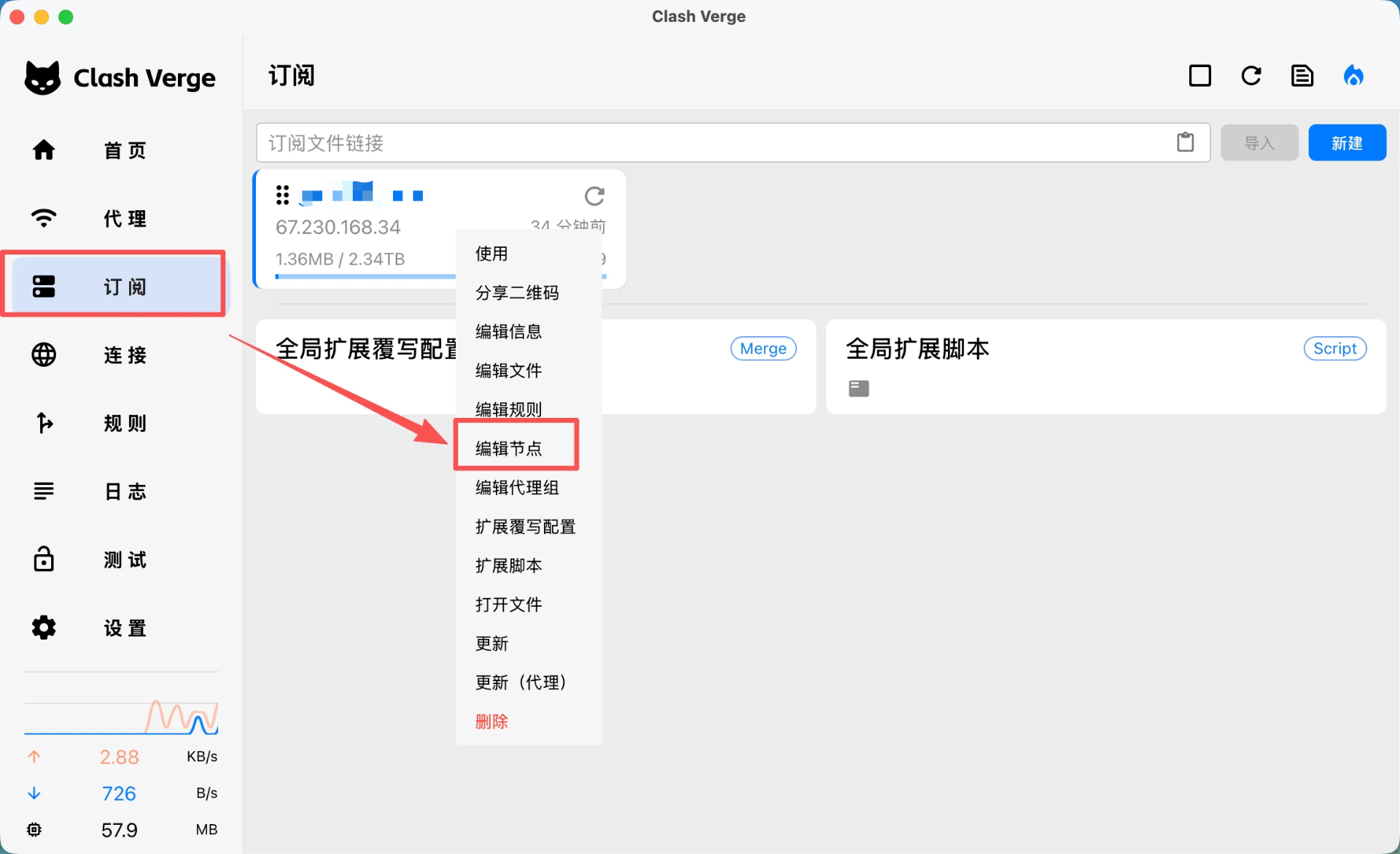
Locate the subscription or proxy node you need to edit and open its configuration using the current version entry.
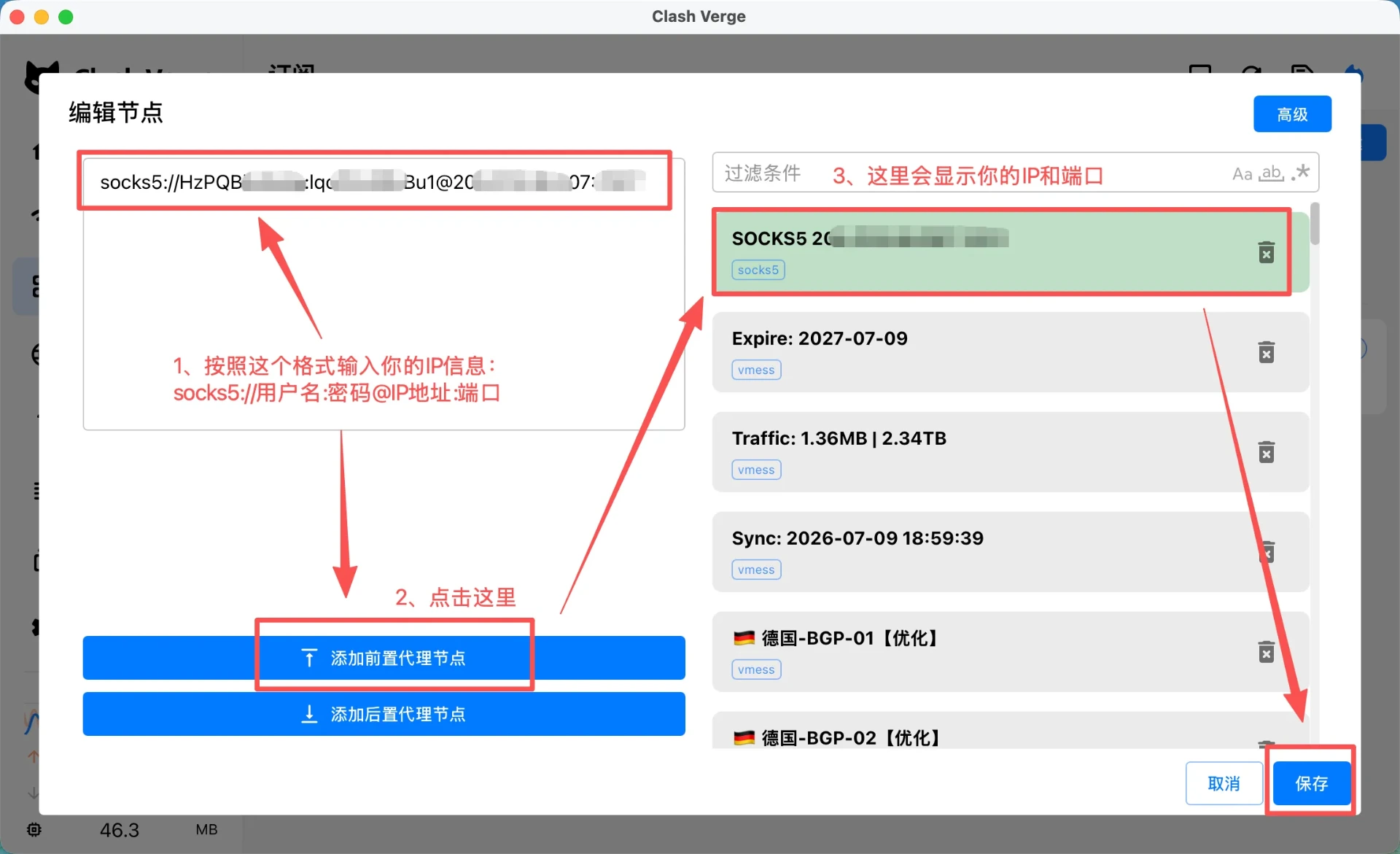
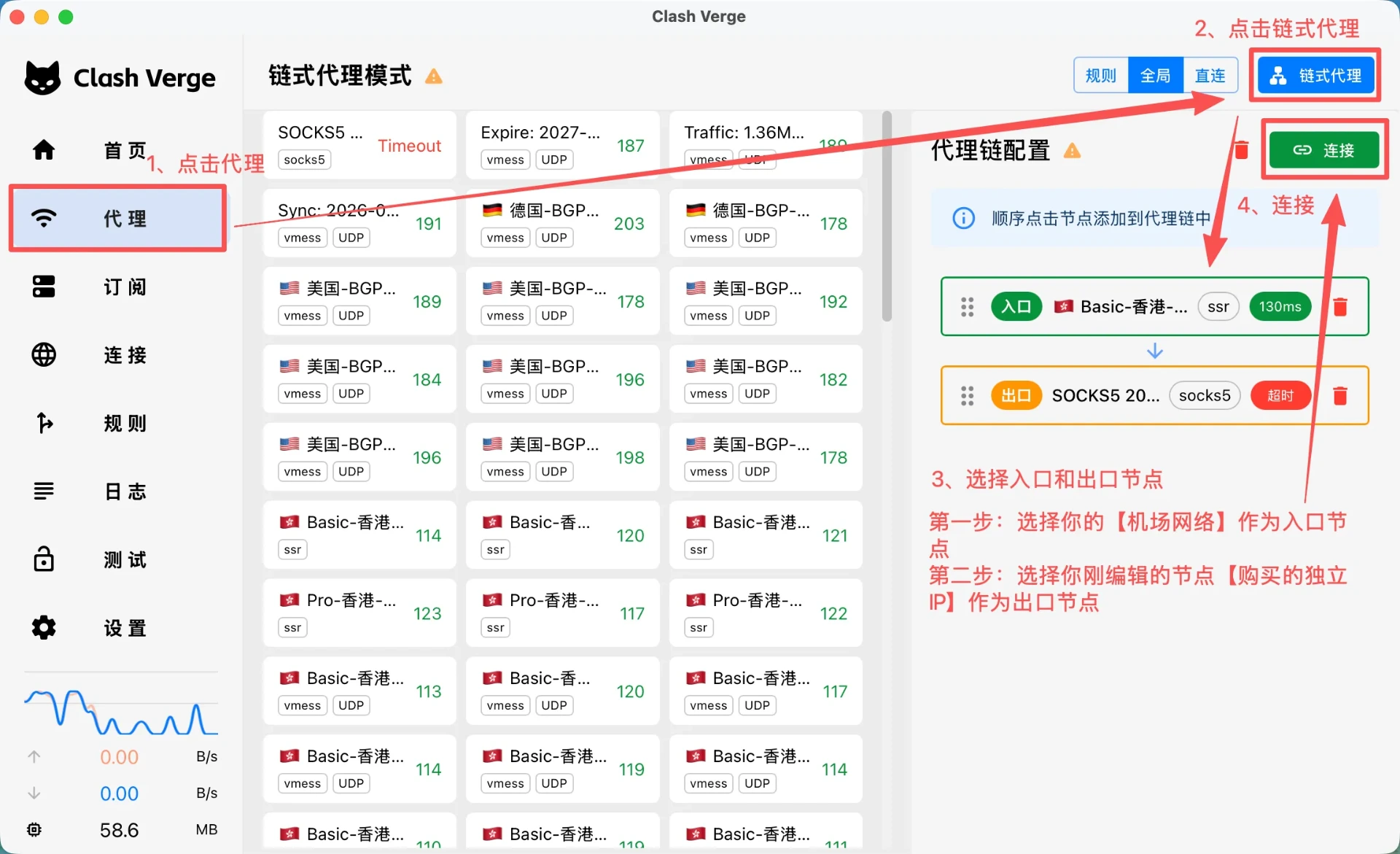
Enter protocol, host, port, username, and password. For a proxy chain, add the relay node and LetTool node in the intended order.
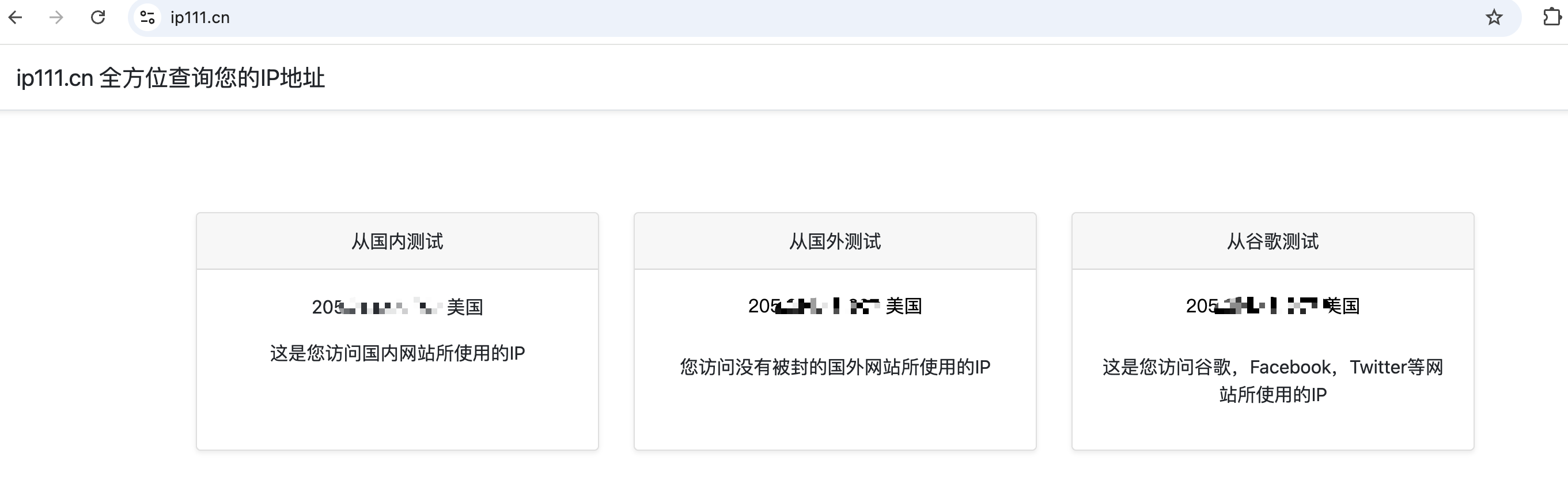
Enable the configuration, then use a client test or IP check page to confirm the exit IP matches the purchased proxy.