Copy proxy credentials
Copy host, port, username, and password from the delivered order and confirm the protocol.
LETTOOL GUIDE
Enter LetTool proxy details in a Hubstudio profile
Screenshots help locate entry points and fields. Client versions may change labels, so follow the current app UI when it differs.
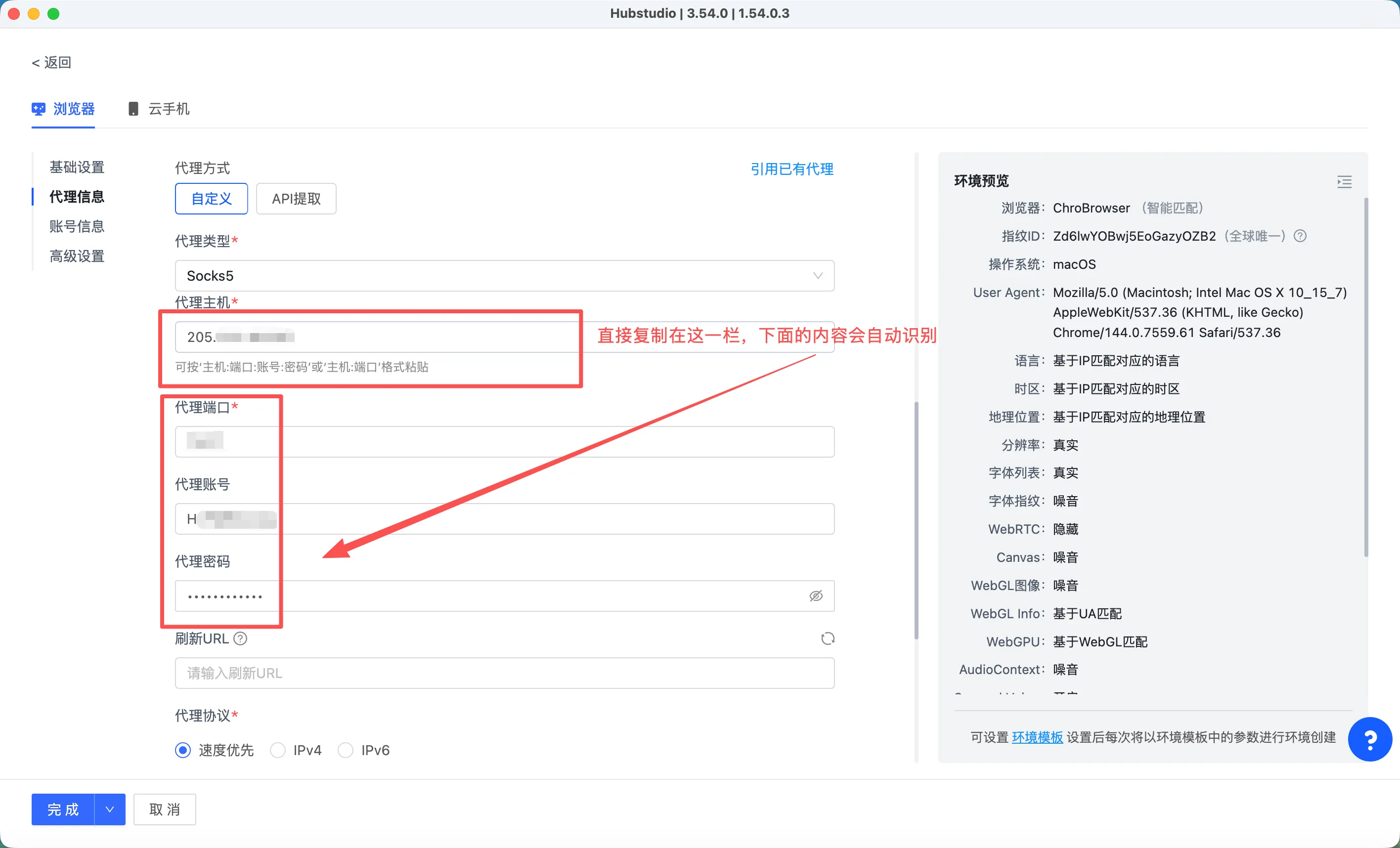
Copy host, port, username, and password from the delivered order and confirm the protocol.
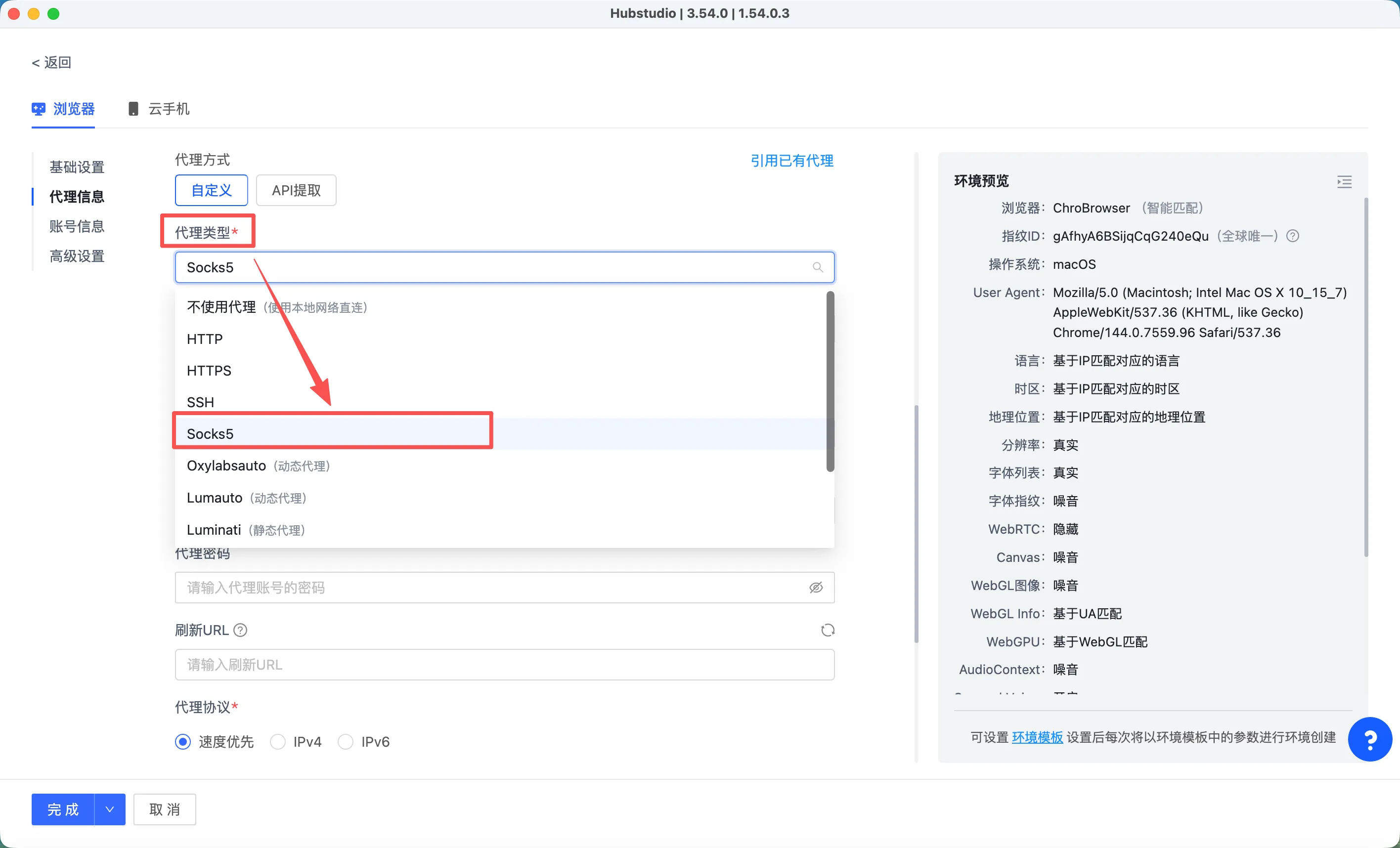
Open Hubstudio, create a profile, and choose a custom proxy in the proxy settings area.
Select SOCKS5 or HTTP as shown in the order, then enter host, port, username, and password.
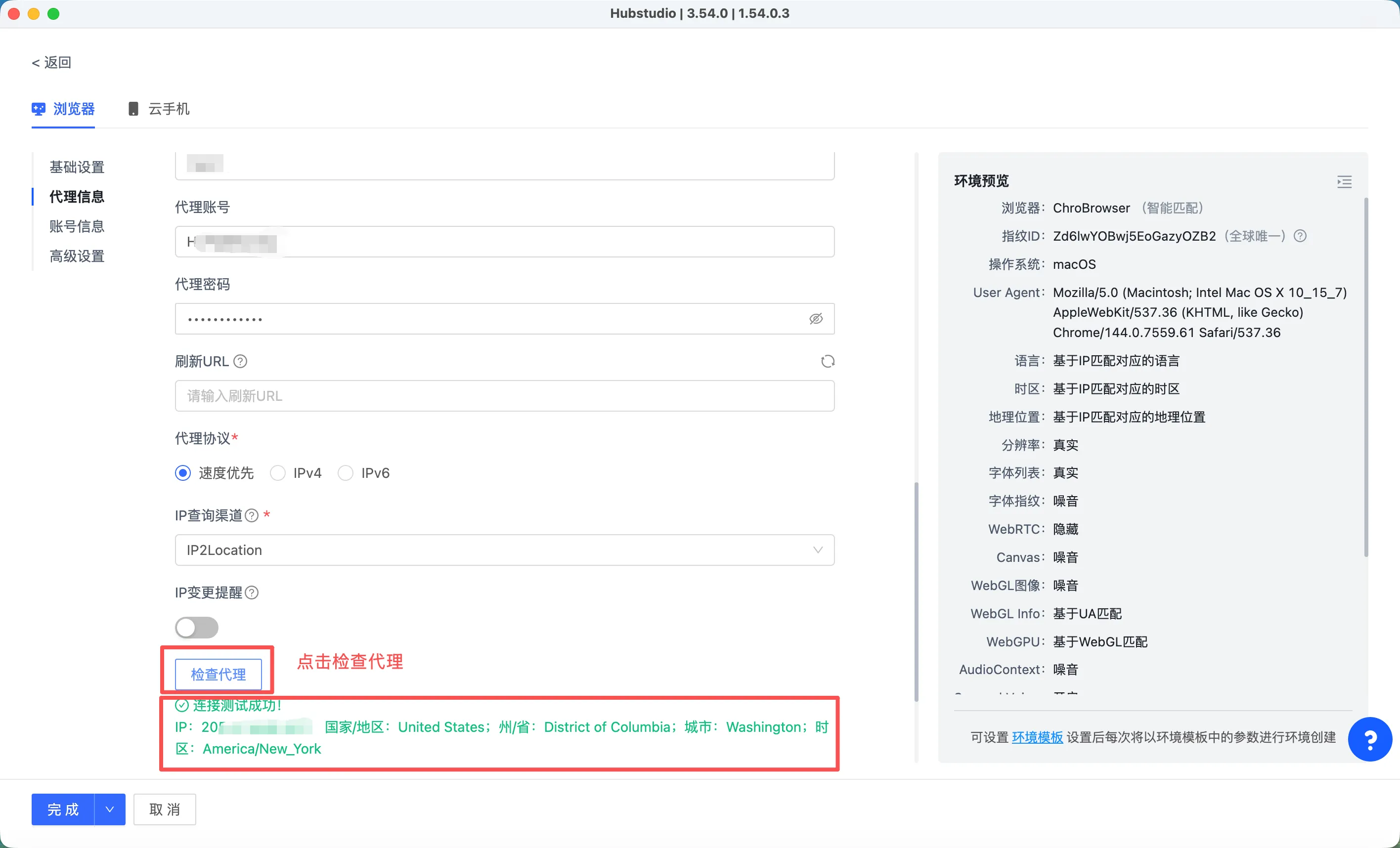
Run the proxy check first. Save the profile after it connects and shows the expected region.