Open node configuration
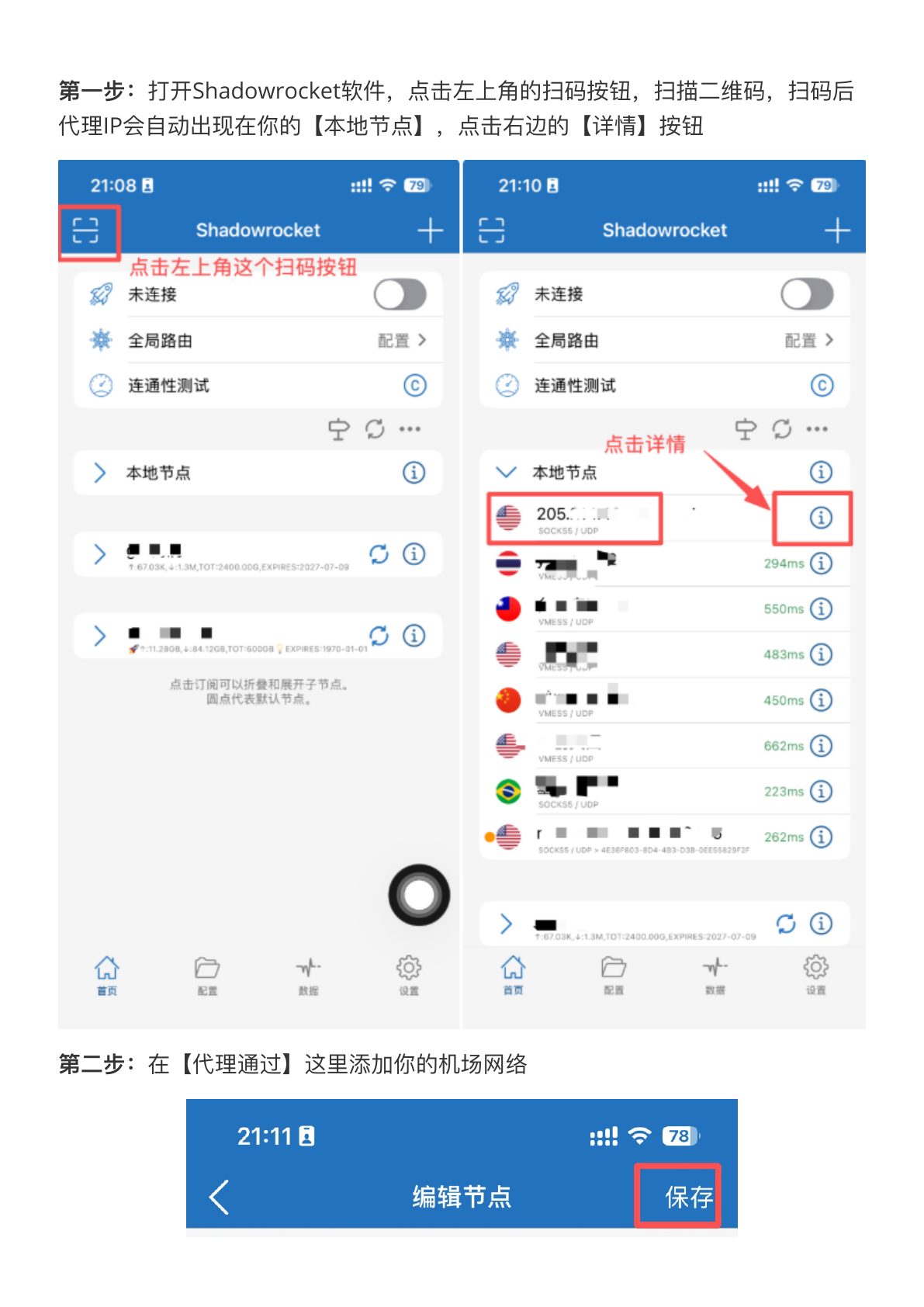
In Shadowrocket, add a node using manual entry or the import method available in your current app version.
LETTOOL GUIDE
Set up LetTool proxy on iPhone or iPad
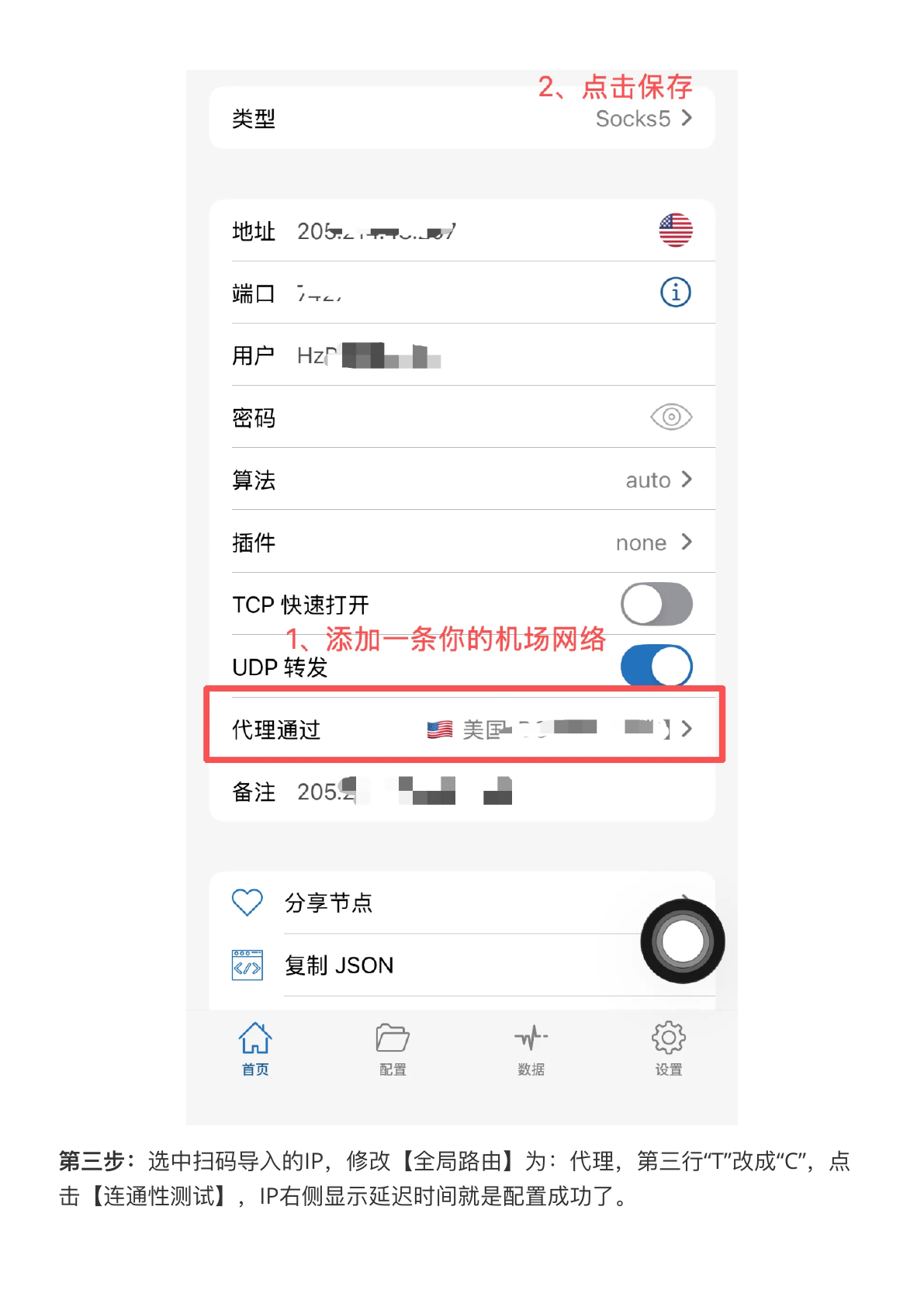
Screenshots help locate entry points and fields. Client versions may change labels, so follow the current app UI when it differs.
In Shadowrocket, add a node using manual entry or the import method available in your current app version.
Use the protocol in the order to enter server, port, username, and password. Keep unspecified settings at defaults.
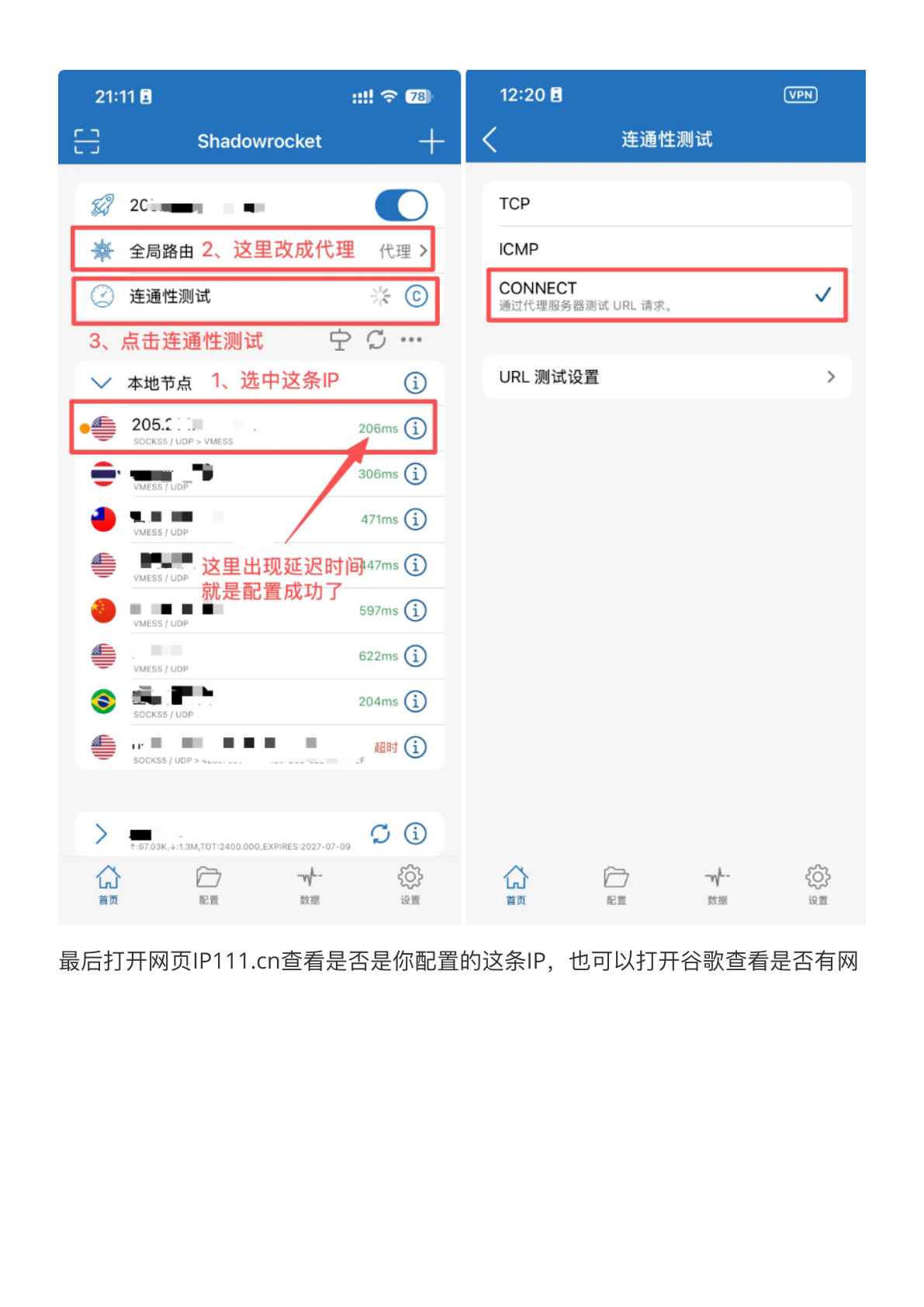
Choose a proxy mode that fits your use case. Confirm the intended node is selected before switching modes.
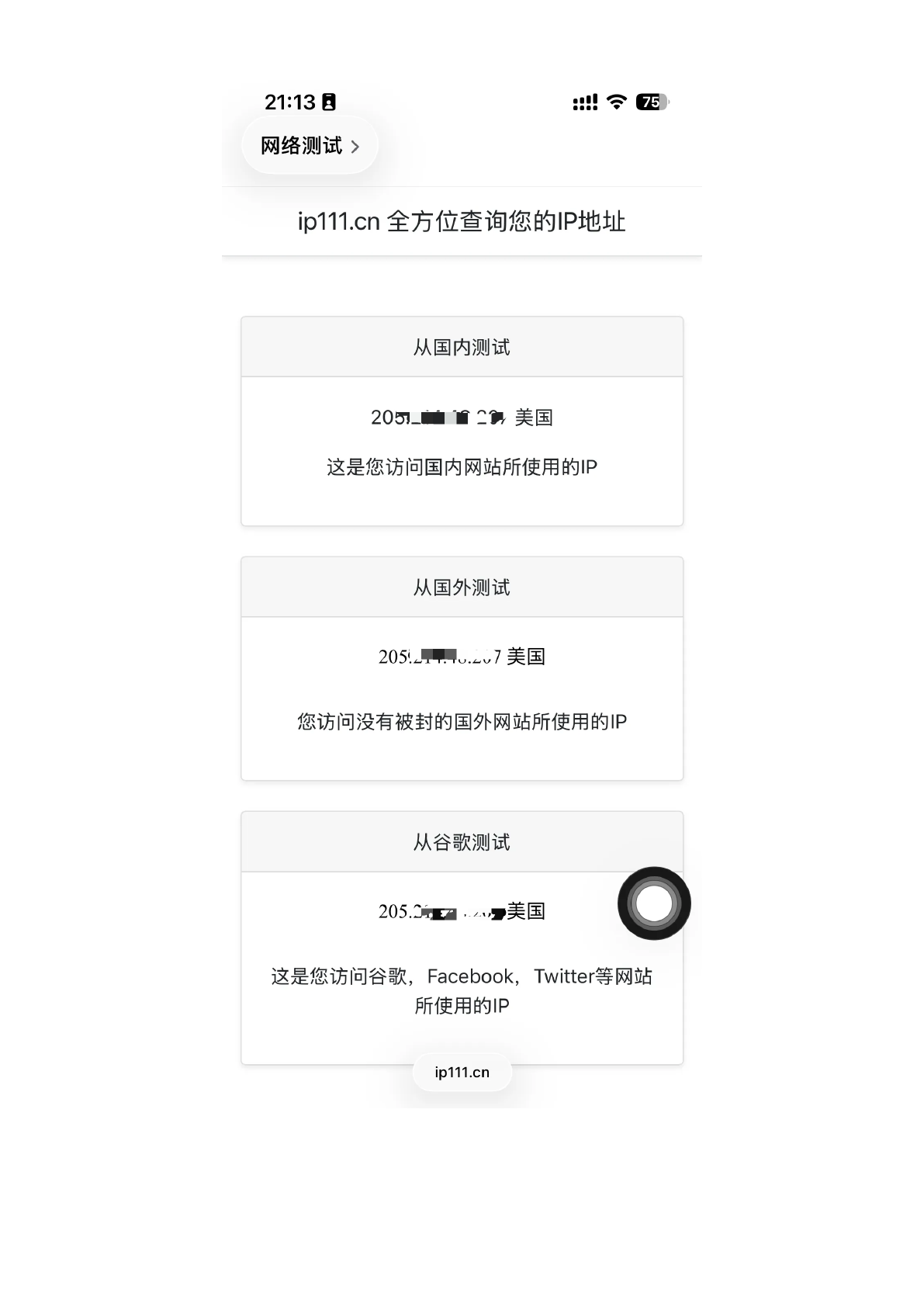
Run the connectivity test, then use an IP check page to confirm the active exit matches the purchased proxy.