LETTOOL GUIDE

v2rayN setup guide

Add LetTool proxy details in v2rayN

7 minHTTP / SOCKS5

Screenshots help locate entry points and fields. Client versions may change labels, so follow the current app UI when it differs.

Setup steps

01

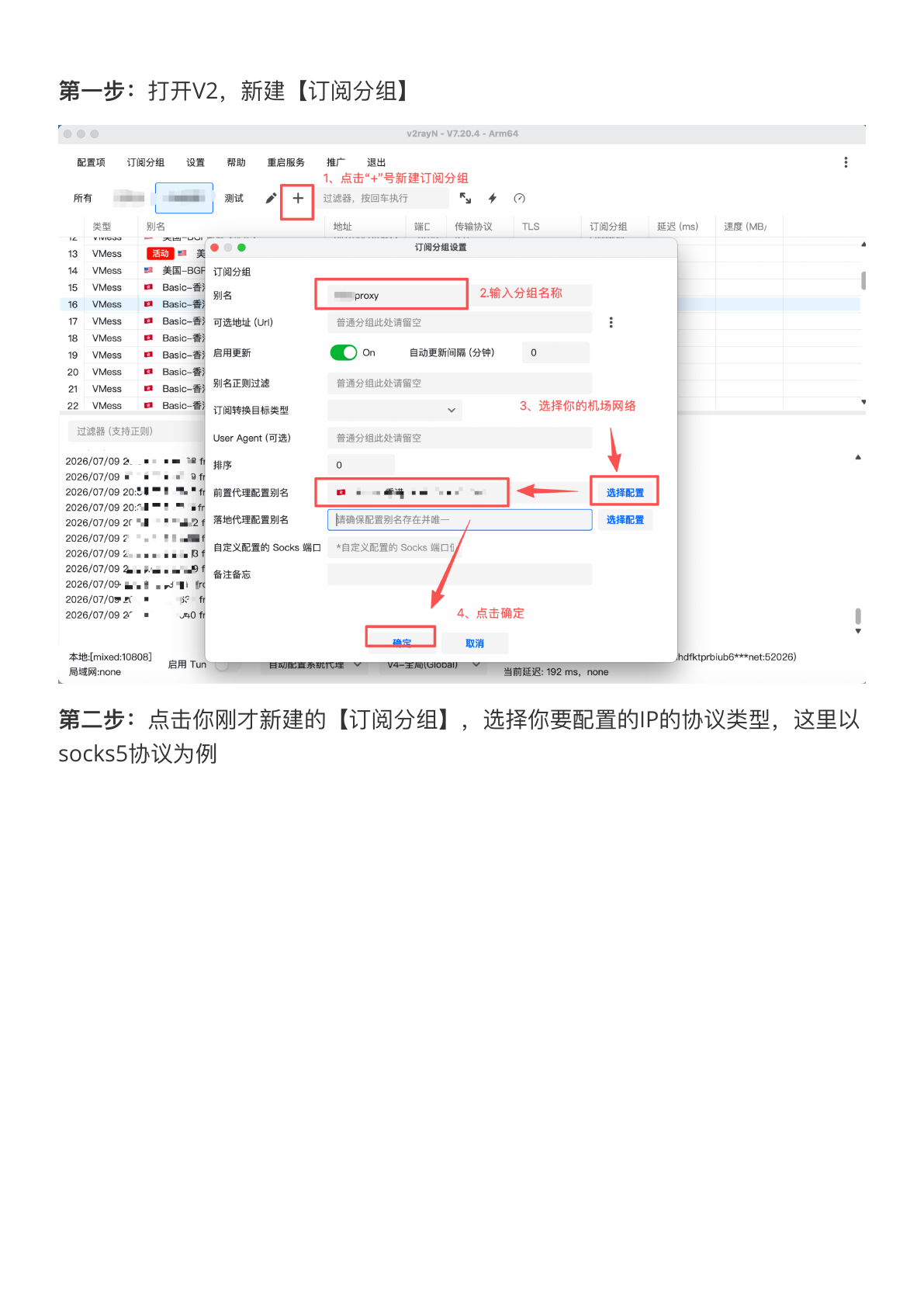
Create a group

Open v2rayN and create a recognizable group so the proxy does not mix with existing nodes.

02

Copy proxy details

Copy host, port, username, and password from the delivered LetTool order and confirm the protocol.

03

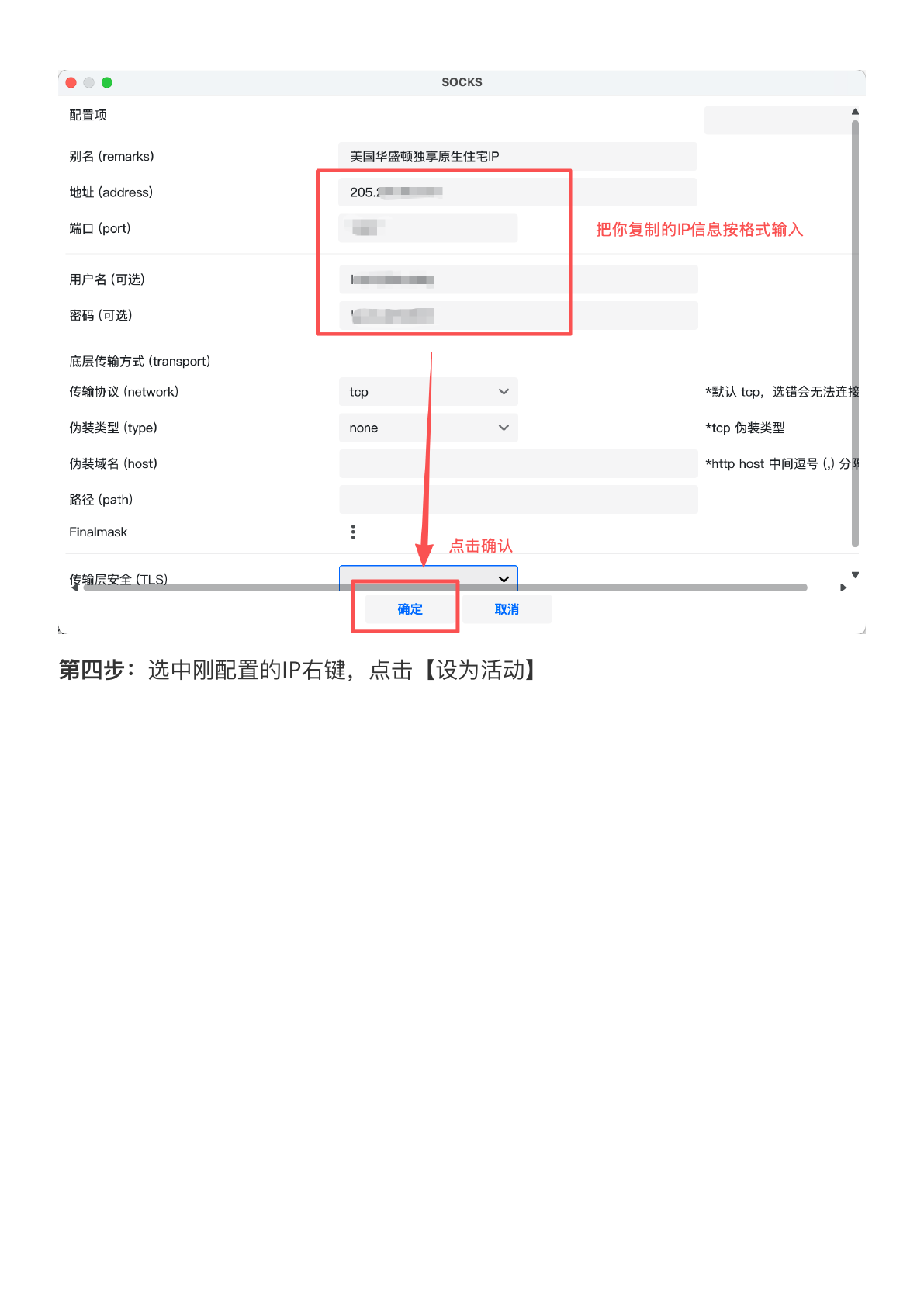
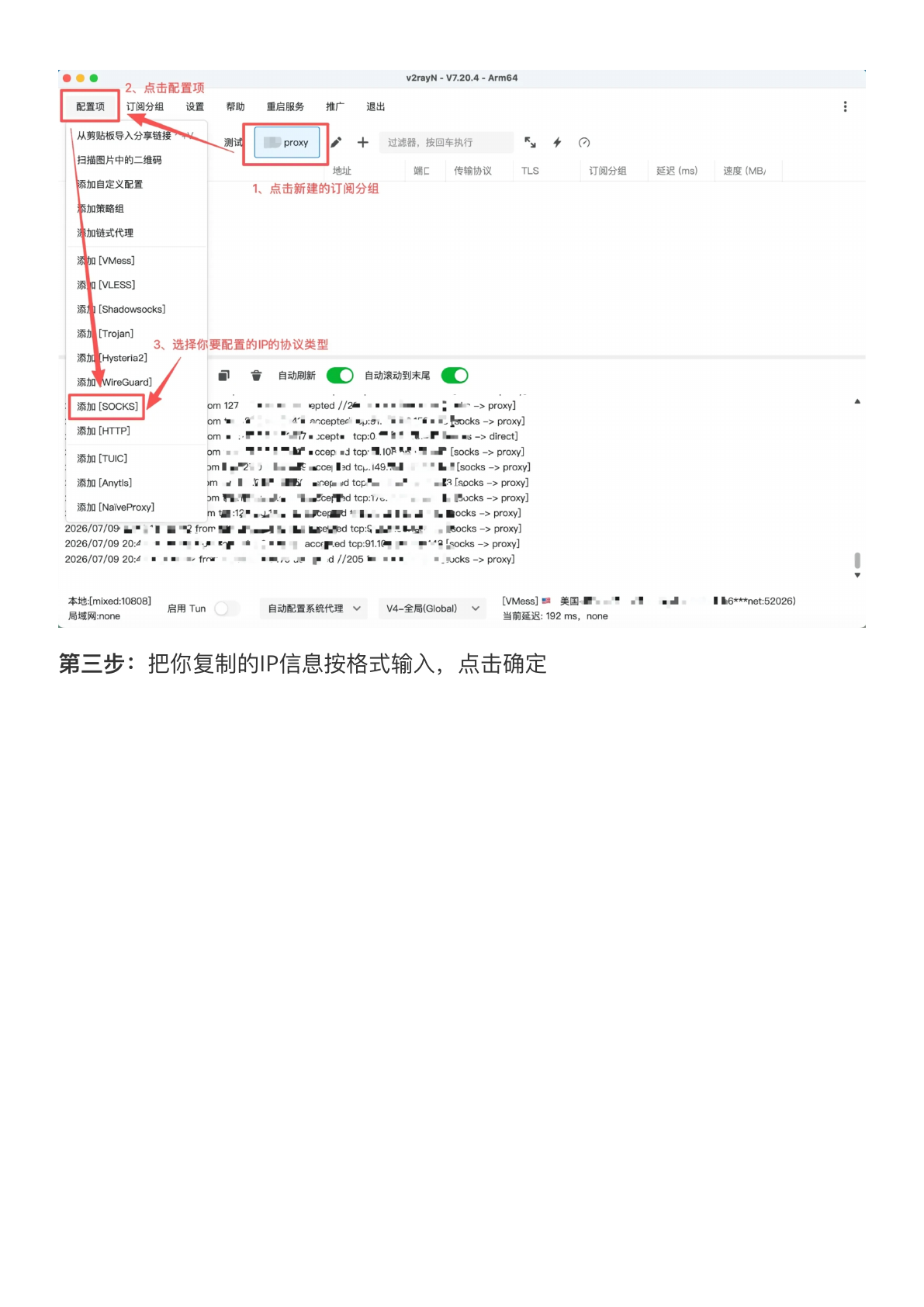
Add a SOCKS5 or HTTP node

Choose the protocol shown in the order within the group, then enter each proxy credential.

04

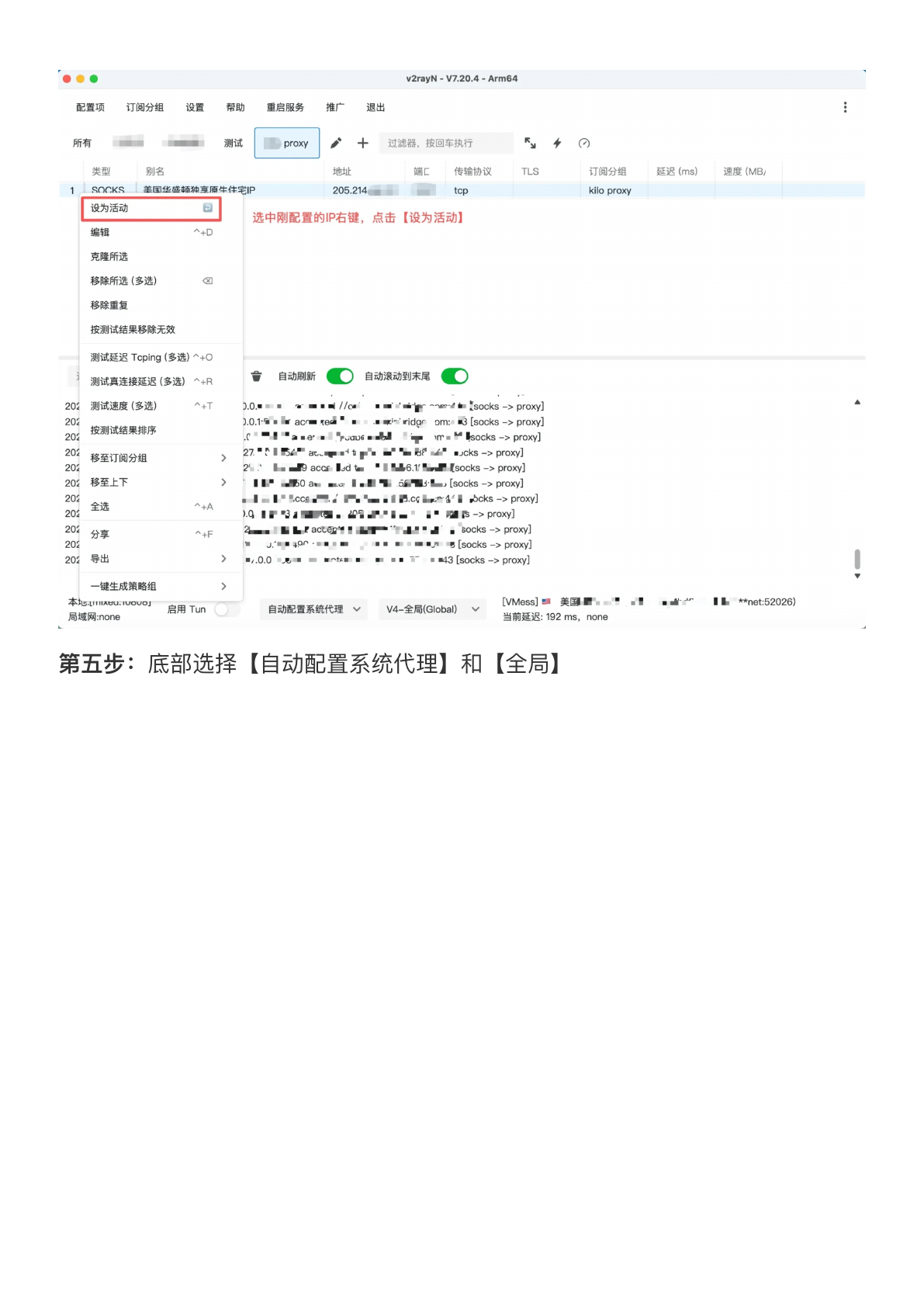
Activate and verify

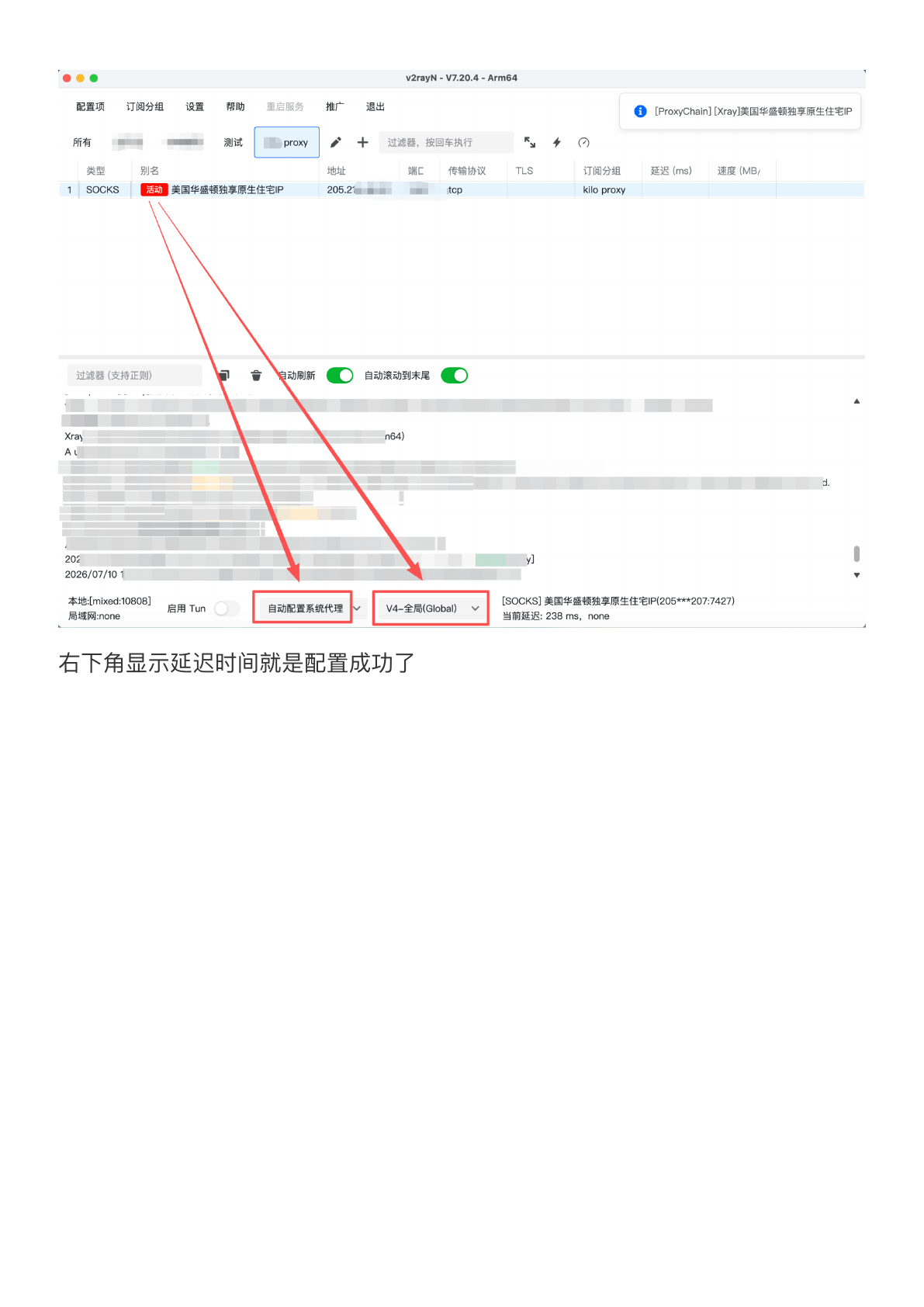
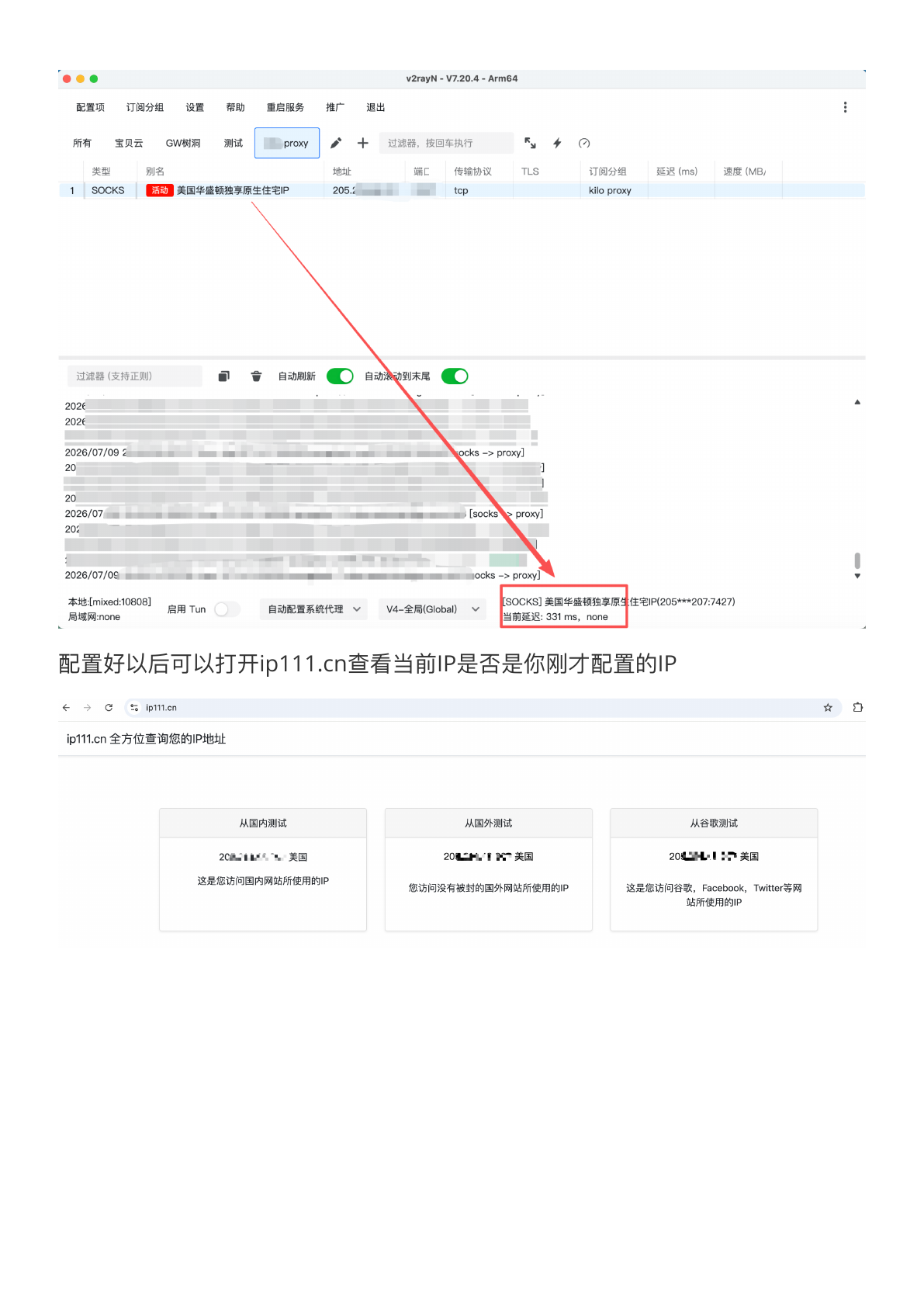
Set the node as active, enable the system proxy when needed, and confirm connectivity with latency or exit-IP testing.
Illustrated reference

Figure 01Create a group and choose a proxy network
v2rayN setup guide - Create a group and choose a proxy network
Figure 02Copy the IP details from the proxy list
v2rayN setup guide - Copy the IP details from the proxy list
Figure 03Select the SOCKS5 protocol type
v2rayN setup guide - Select the SOCKS5 protocol type
Figure 04Enter the host, port, username, and password
v2rayN setup guide - Enter the host, port, username, and password
Figure 05Enable the system proxy and start using it
v2rayN setup guide - Enable the system proxy and start using it
Figure 06Check the latency and current exit IP
v2rayN setup guide - Check the latency and current exit IP