Create a proxy configuration
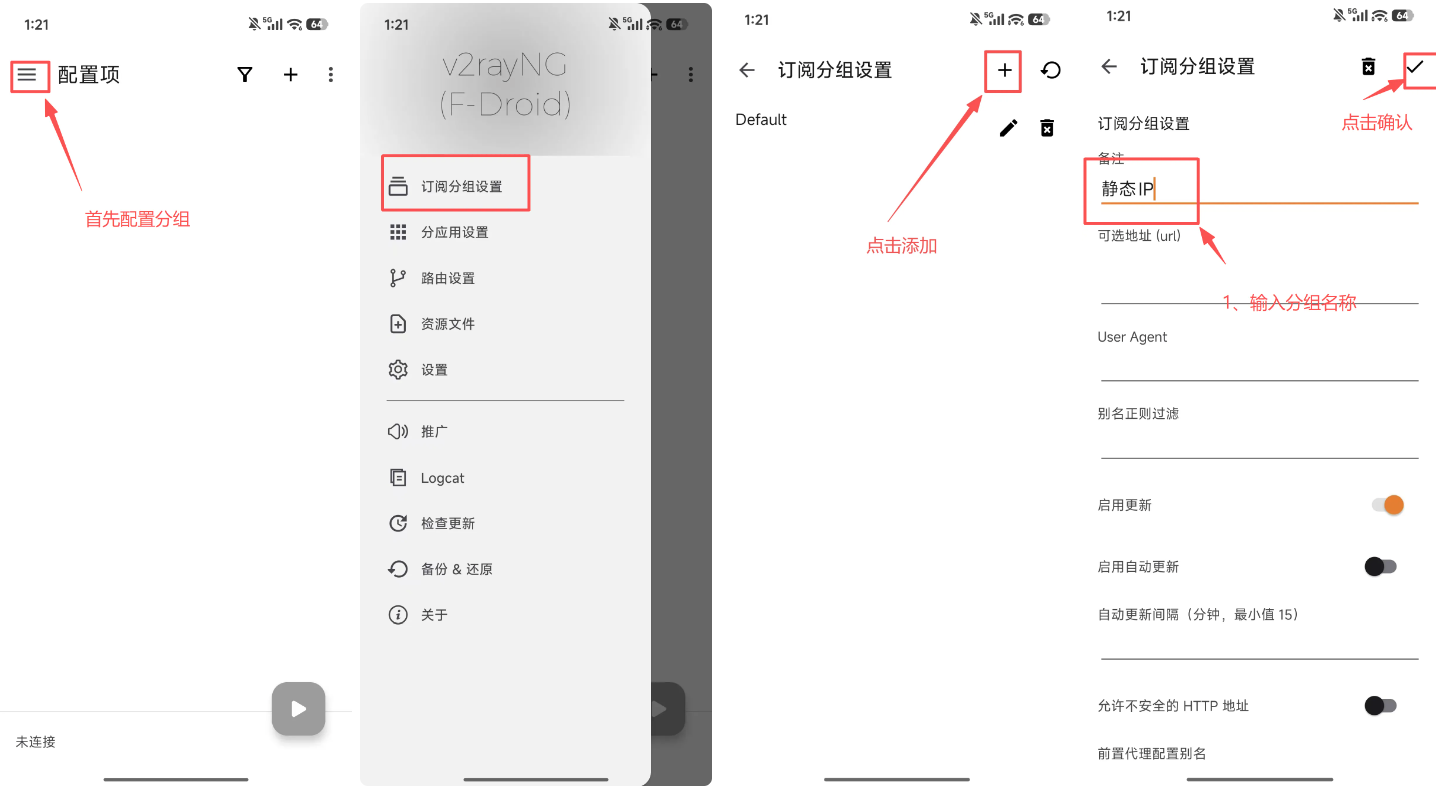
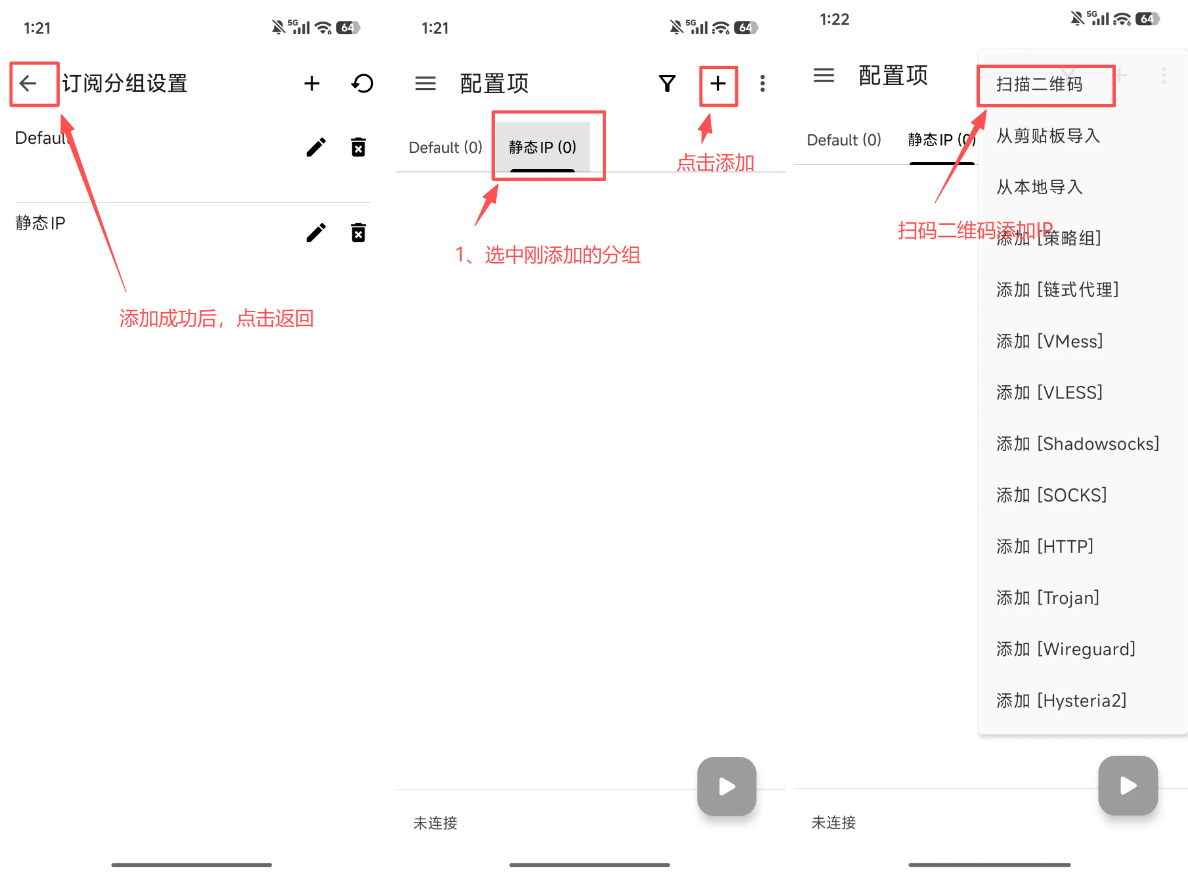
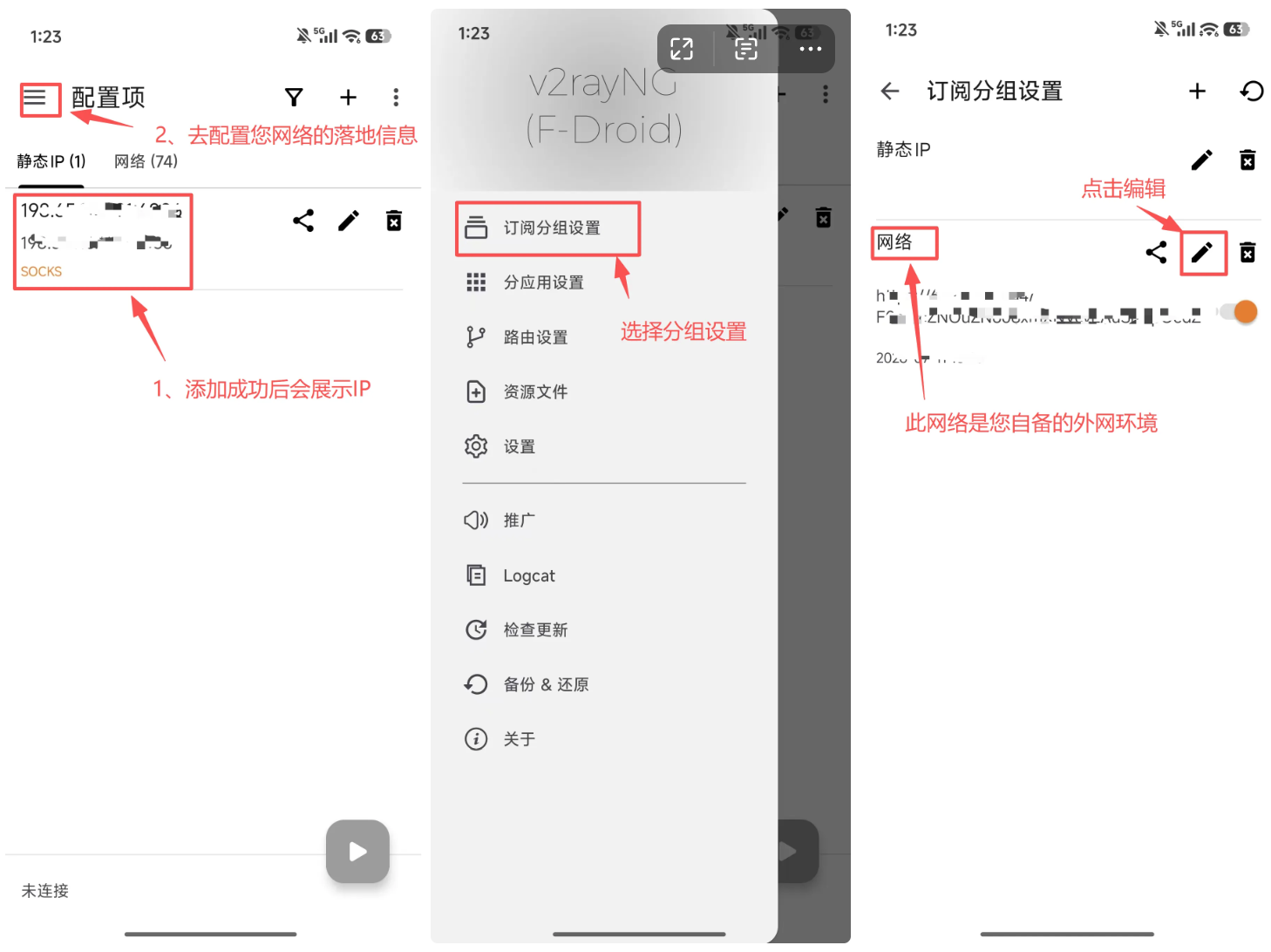
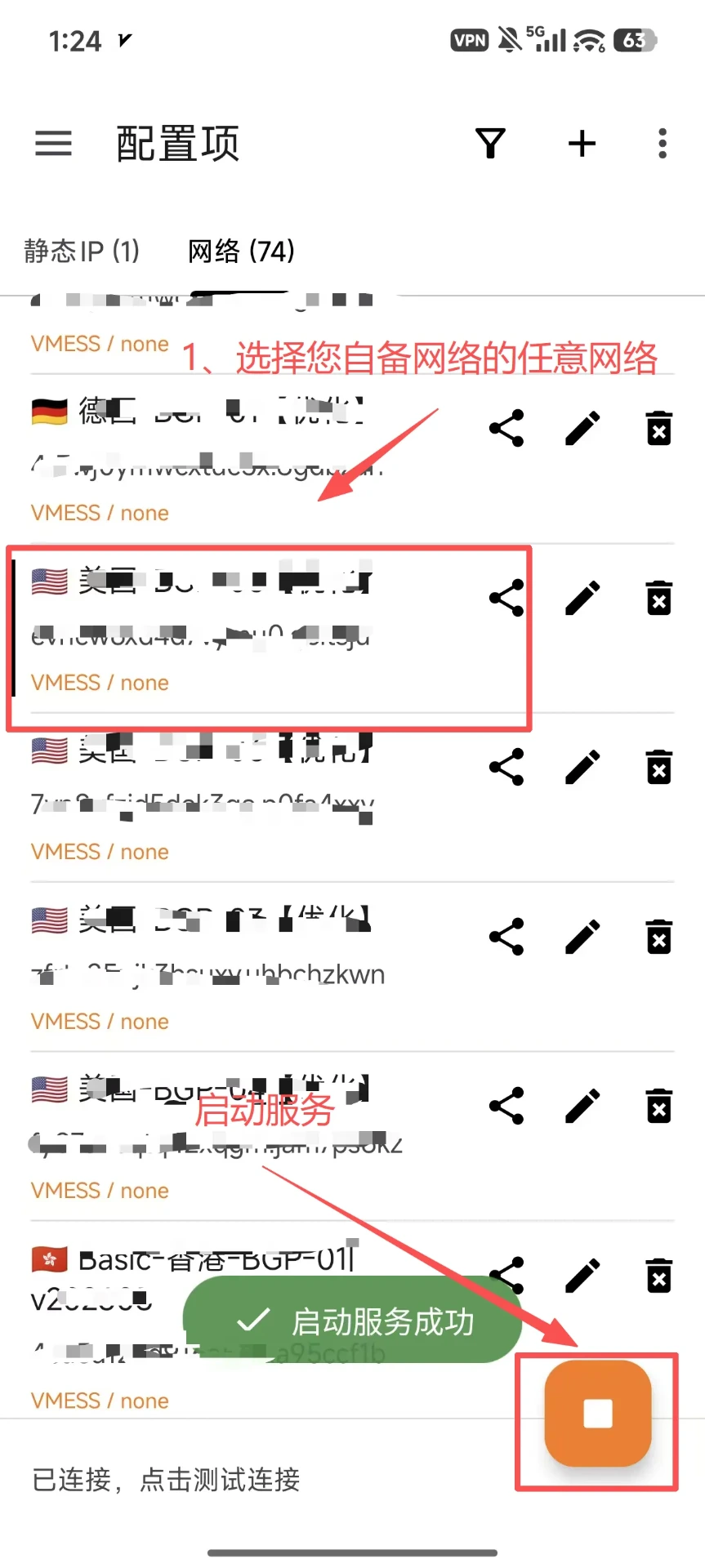
Open v2rayNG and use the add action to create a configuration. When several nodes exist, use a clear group or remark first.
LETTOOL GUIDE
Set up LetTool proxy on Android
Screenshots help locate entry points and fields. Client versions may change labels, so follow the current app UI when it differs.
Open v2rayNG and use the add action to create a configuration. When several nodes exist, use a clear group or remark first.
Choose the SOCKS5, HTTP, or other protocol shown in the order. A mismatched protocol usually prevents connection.
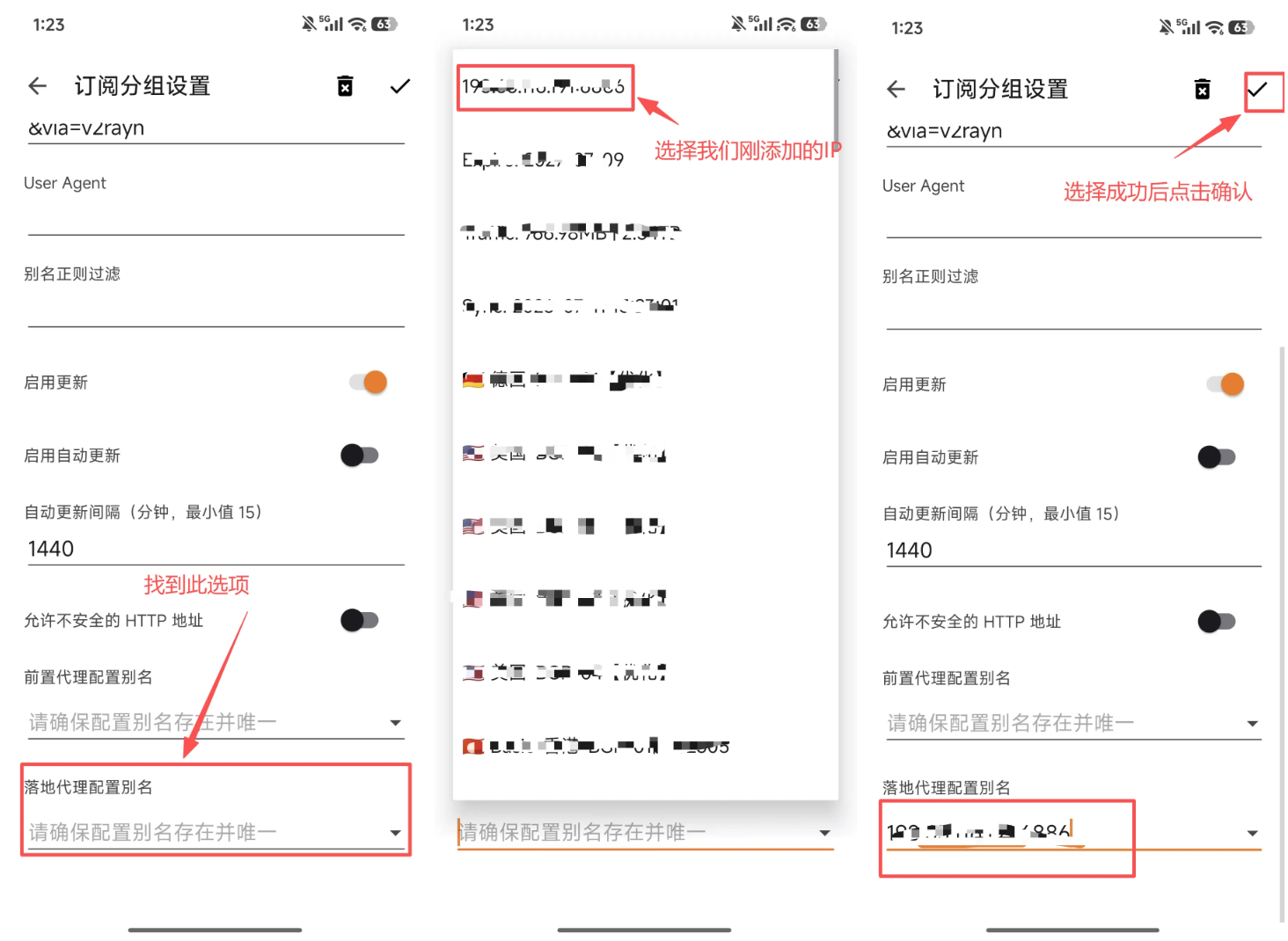
Enter host, port, username, and password separately, check that the port and username contain no extra spaces, and save.
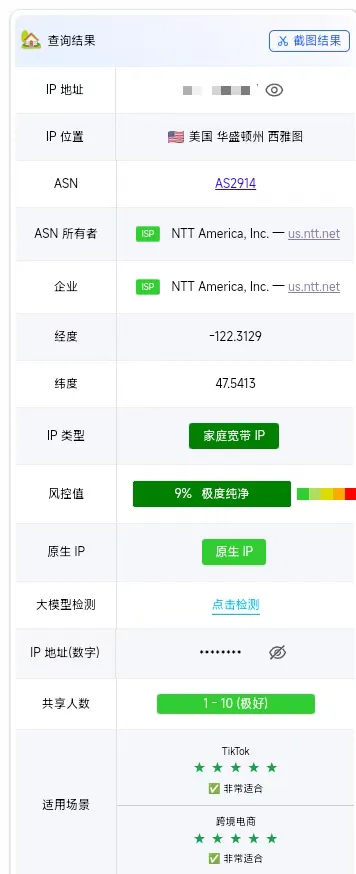
Select the node and start the service. Once the app confirms connection, check latency and the actual exit IP.